If you require any more information or have any questions about our site's disclaimer, please feel free to contact us by email at https://www.facebook.com/dickydraknes.
Disclaimers for http://infokomdns.blogspot.co.id:
All the information on this website is published in good faith and for general information purpose only. http://infokomdns.blogspot.co.id does not make any warranties about the completeness, reliability and accuracy of this information. Any action you take upon the information you find on this website (http://infokomdns.blogspot.co.id), is strictly at your own risk. http://infokomdns.blogspot.co.id will not be liable for any losses and/or damages in connection with the use of our website.
From our website, you can visit other websites by following hyperlinks to such external sites. While we strive to provide only quality links to useful and ethical websites, we have no control over the content and nature of these sites. These links to other websites do not imply a recommendation for all the content found on these sites. Site owners and content may change without notice and may occur before we have the opportunity to remove a link which may have gone 'bad'.
Please be also aware that when you leave our website, other sites may have different privacy policies and terms which are beyond our control. Please be sure to check the Privacy Policies of these sites as well as their "Terms of Service" before engaging in any business or uploading any information.
Consent
By using our website, you hereby consent to our disclaimer and agree to its terms.
Update
This site disclaimer was last updated on: Saturday, January 2nd, 2016 · Should we update, amend or make any changes to this document, those changes will be prominently posted here.
Terms of Service for
If you require any more information or have any questions about our Terms of Service, please feel free to contact us by email at .
Introduction
These terms and conditions govern your use of this website; by using this website, you accept these terms and conditions in full and without reservation. If you disagree with these terms and conditions or any part of these terms and conditions, you must not use this website.
You must be at least 18 [eighteen] years of age to use this website. By using this website and by agreeing to these terms and conditions, you warrant and represent that you are at least 18 years of age.
License to use website
Unless otherwise stated, and/or its licensors own the intellectual property rights published on this website and materials used on . Subject to the license below, all these intellectual property rights are reserved.
You may view, download for caching purposes only, and print pages, files or other content from the website for your own personal use, subject to the restrictions set out below and elsewhere in these terms and conditions.
You must not:
republish material from this website in neither print nor digital media or documents (including republication on another website);
sell, rent or sub-license material from the website;
show any material from the website in public;
reproduce, duplicate, copy or otherwise exploit material on this website for a commercial purpose;
edit or otherwise modify any material on the website;
redistribute material from this website - except for content specifically and expressly made available for redistribution; or
republish or reproduce any part of this website through the use of iframes or screenscrapers.
Where content is specifically made available for redistribution, it may only be redistributed within your organisation.
Acceptable use
You must not use this website in any way that causes, or may cause, damage to the website or impairment of the availability or accessibility of or in any way which is unlawful, illegal, fraudulent or harmful, or in connection with any unlawful, illegal, fraudulent or harmful purpose or activity.
You must not use this website to copy, store, host, transmit, send, use, publish or distribute any material which consists of (or is linked to) any spyware, computer virus, Trojan horse, worm, keystroke logger, rootkit or other malicious computer software.
You must not conduct any systematic or automated data collection activities on or in relation to this website without 's express written consent.
This includes:
scraping
data mining
data extraction
data harvesting
'framing' (iframes)
Article 'Spinning'
You must not use this website or any part of it to transmit or send unsolicited commercial communications.
You must not use this website for any purposes related to marketing without the express written consent of .
Restricted access
Access to certain areas of this website is restricted. reserves the right to restrict access to certain areas of this website, or at our discretion, this entire website. may change or modify this policy without notice.
If provides you with a user ID and password to enable you to access restricted areas of this website or other content or services, you must ensure that the user ID and password are kept confidential. You alone are responsible for your password and user ID security..
may disable your user ID and password at 's sole discretion without notice or explanation.
User content
In these terms and conditions, “your user content” means material (including without limitation text, images, audio material, video material and audio-visual material) that you submit to this website, for whatever purpose.
You grant to a worldwide, irrevocable, non-exclusive, royalty-free license to use, reproduce, adapt, publish, translate and distribute your user content in any existing or future media. You also grant to the right to sub-license these rights, and the right to bring an action for infringement of these rights.
Your user content must not be illegal or unlawful, must not infringe any third party's legal rights, and must not be capable of giving rise to legal action whether against you or or a third party (in each case under any applicable law).
You must not submit any user content to the website that is or has ever been the subject of any threatened or actual legal proceedings or other similar complaint.
reserves the right to edit or remove any material submitted to this website, or stored on the servers of , or hosted or published upon this website.
's rights under these terms and conditions in relation to user content, does not undertake to monitor the submission of such content to, or the publication of such content on, this website.
No warranties
This website is provided “as is” without any representations or warranties, express or implied. makes no representations or warranties in relation to this website or the information and materials provided on this website.
Without prejudice to the generality of the foregoing paragraph, does not warrant that:
this website will be constantly available, or available at all; or
the information on this website is complete, true, accurate or non-misleading.
Nothing on this website constitutes, or is meant to constitute, advice of any kind. If you require advice in relation to any legal, financial or medical matter you should consult an appropriate professional.
Limitations of liability
will not be liable to you (whether under the law of contact, the law of torts or otherwise) in relation to the contents of, or use of, or otherwise in connection with, this website:
to the extent that the website is provided free-of-charge, for any direct loss;
for any indirect, special or consequential loss; or
for any business losses, loss of revenue, income, profits or anticipated savings, loss of contracts or business relationships, loss of reputation or goodwill, or loss or corruption of information or data.
These limitations of liability apply even if has been expressly advised of the potential loss.
Exceptions
Nothing in this website disclaimer will exclude or limit any warranty implied by law that it would be unlawful to exclude or limit; and nothing in this website disclaimer will exclude or limit the liability of in respect of any:
death or personal injury caused by the negligence of or its agents, employees or shareholders/owners;
fraud or fraudulent misrepresentation on the part of ; or
matter which it would be illegal or unlawful for to exclude or limit, or to attempt or purport to exclude or limit, its liability.
Reasonableness
By using this website, you agree that the exclusions and limitations of liability set out in this website disclaimer are reasonable.
If you do not think they are reasonable, you must not use this website.
Other parties
You accept that, as a limited liability entity, has an interest in limiting the personal liability of its officers and employees. You agree that you will not bring any claim personally against 's officers or employees in respect of any losses you suffer in connection with the website.
Without prejudice to the foregoing paragraph, you agree that the limitations of warranties and liability set out in this website disclaimer will protect 's officers, employees, agents, subsidiaries, successors, assigns and sub-contractors as well as .
Unenforceable provisions
If any provision of this website disclaimer is, or is found to be, unenforceable under applicable law, that will not affect the enforceability of the other provisions of this website disclaimer.
Indemnity
You hereby indemnify and undertake to keep indemnified against any losses, damages, costs, liabilities and expenses (including without limitation legal expenses and any amounts paid by to a third party in settlement of a claim or dispute on the advice of 's legal advisers) incurred or suffered by arising out of any breach by you of any provision of these terms and conditions, or arising out of any claim that you have breached any provision of these terms and conditions.
Breaches of these terms and conditions
Without prejudice to 's other rights under these terms and conditions, if you breach these terms and conditions in any way, may take such action as deems appropriate to deal with the breach, including suspending your access to the website, prohibiting you from accessing the website, blocking computers using your IP address from accessing the website, contacting your internet service provider to request that they block your access to the website and/or bringing court proceedings against you.
Variation
may revise these terms and conditions from time-to-time. Revised terms and conditions will apply to the use of this website from the date of the publication of the revised terms and conditions on this website. Please check this page regularly to ensure you are familiar with the current version.
Assignment
may transfer, sub-contract or otherwise deal with 's rights and/or obligations under these terms and conditions without notifying you or obtaining your consent.
You may not transfer, sub-contract or otherwise deal with your rights and/or obligations under these terms and conditions.
Severability
If a provision of these terms and conditions is determined by any court or other competent authority to be unlawful and/or unenforceable, the other provisions will continue in effect. If any unlawful and/or unenforceable provision would be lawful or enforceable if part of it were deleted, that part will be deemed to be deleted, and the rest of the provision will continue in effect.
Entire agreement
These terms and conditions, together with 's Privacy Policy constitute the entire agreement between you and in relation to your use of this website, and supersede all previous agreements in respect of your use of this website.
Law and jurisdiction
These terms and conditions will be governed by and construed in accordance with the laws of , and any disputes relating to these terms and conditions will be subject to the exclusive jurisdiction of the courts of .
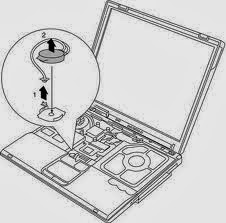
Baterai CMOS (Complementary metal–oxide–semiconductor) disebut juga CMOS RAM atau hanya CMOS adalah sebuah baterai yang digunakan oleh BIOS untuk tetap aktif meski tanpa aliran listrik. Salah satu kegunaannya untuk mengaktifkan dan menjalankan fungsi jam, serta menyimpan setting BIOS, dan umumnya memakai baterai kancing (Baterai bulat yang pipih, diameter dan ketebalannya bervariasi). OK deh, singkat saja penjelasanya mengenai CMOS. Perlu saya beritahu sebelumnya, Laptop yang saya ganti baterai CMOS-nya ini adalah Compaq Presario CQ40. Lansung saja ini dia cara mengganti baterai CMOS pada laptop : 1. Cabut semua aliran listrik yang masih mengalir ke laptop termasuk lepas baterai laptop...
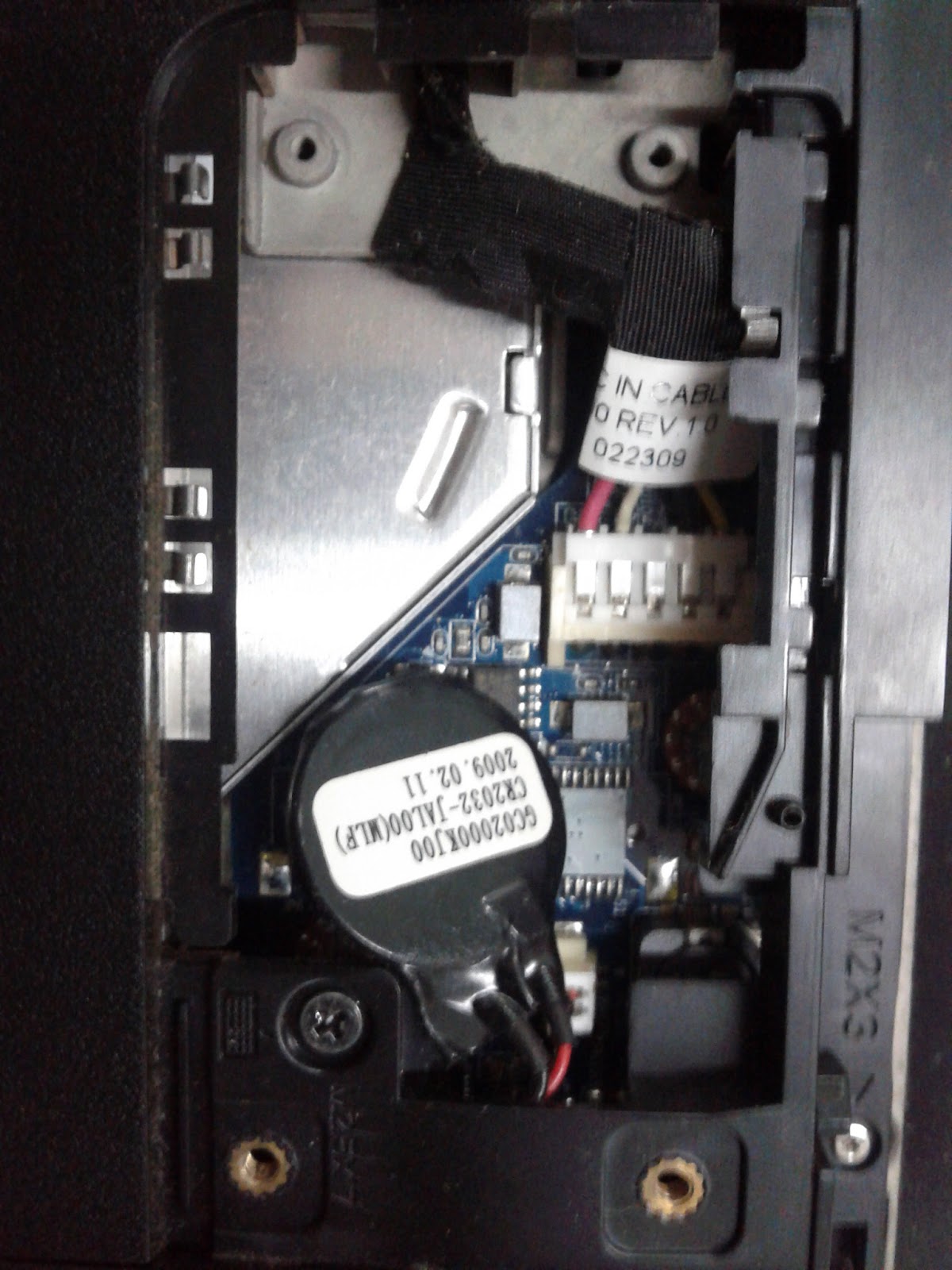
2. Buka penutup baterai CMOS pada bagian bawah laptop tepatnya disamping tempat baterai. (setiap laptop memiliki tempat yang berbeda-beda, ada yang harus sampai bongkar body laptop seperti Axioo, baru bisa melepas baterainya.) 3. Jika sudah terbuka, maka akan terlihat baterai CMOS laptop yang terbungkus plastik hitam dengan kabel merah hitam. 4. Cabut kabel baterai dari konektonya sehingga terlepas seperti gambar dibawah ini.
5. Untuk langkah ini ada 2 opsi yang ada. Pertama beli paketan baterai CMOS yang sudah terbungkus seperti pada gambar, atau yang kedua membeli isi baterai nya dan mengganti sendiri.
6. Jika Sobat memilih opsi yang pertama, maka anda tinggal membeli paket baterainya di HP center dan tutorial berhenti disini. Perlu saya informasikan harganya adalah Rp150.000,00. Tinggal colokan baterai yang baru tanpa harus susah mengganti isi baterai, tapi dengan harga baterai yang relatif sangat mahal..
7. Tapi jika anda memilih opsi kedua, maka tutorial ini akan berlanjut. Dan langkah selanjutnya adalah membuka pembungkus plastik baterai untuk mengambil baterainya seperti gambar dibawah ini. Isi baterai CMOS di pasaran hanya Rp 2.000,00 saja. Ingat, sebaiknya baterai baru yang digunakan sama seri dan dayanya dengan baterai yang sebelumnya, yaitu CR2032.
8. Cara melepas baterainya dari besi pengait itu adalah dengan cara di blower / dipanaskan dulu baru bisa lepas.
9. Setelah lepas. Pasang baterai yang baru dan Blow lagi untuk merekatkan.
10. Bungkus baterai yang sudah diganti tadi dengan isolasi hitam untuk merapikanya.
11. Setelah terbungkus rapi, colokan kembali pada slot baterai CMOS pada laptop Sobat.. Tutup kembali body laptop, dan nyalakan seperti biasa.
12. Cara sederhana untuk mengecek baterai berfungsi atau tidak adalah dengan mengecek waktu dan penanggalan yang telah di atur lagi. Apakah kembali ke waktu yang lama atau waktunya berlanjut, setelah komputer dimatikan beberapa saat.
Cara Setting Komputer/Laptop Windows 7 Agar Tidak Sleep
- Pada dasarnya fitur sleep yang ada di windows 7 bertujuan untuk
mengurangi konsumsi energi. Terlebih untuk pengguna laptop, jelas fitur
ini akan sangat dibutuhkan, karena bisa menghemat penggunaan daya
baterai. Secara default.
Fitur ini bekerja dengan mematikan otomatis komputer/laptop apabila
tidak terdapat aktifitas apapun dalam rentang waktu yang telah
ditentukan. Secara default fitur ini telah diaktifkan. Namun, pada
beberapa kondisi, kita tidak memerlukan fitur sleep ini. Pada artikel
ini, saya akan menunjukan cara bagaimana menonaktifkan fitur sleep ini.
Berikut langkah-langkah yang bisa Anda ikuti.
Cara Menonaktifkan Fitur Sleep di Windows 7
Pertama kita masuk terlebih dahulu ke control panel. Caranya sudah pada tau kan? hehe...
Pada jendela awal control panel, pilih System and Security. Lihat gambar dibawah.
Setelah itu, lihat pada bagian Power Options terdapat beberapa sub. Pilih Change when the computer sleeps.
Lihat gambar dibawah ini agar lebih jelas.
Nah, kamu akan masuk pada bagian dimana kamu bisa setting waktu untuk sleep. Caranya pada bagian Put the computer sleep (yang ditandai kotak merah). Pada bagian ini, kamu bisa setting waktu yang kamu inginkan. Misal pada contoh ini saya mengatur On Baterry1 hour dan Plugged inNever.
Dengan settingan seperti diatas, hasil yang akan didapat adalah ketika
kita mengoperasikan laptop dengan daya baterai, maka laptop akan sleep
jika tidak terdapat aktifitas apapun selama 1 jam. Namun jika kita
mengoperasikan laptop dengan keadaan mengecas (plugged in), maka laptop
tidak akan pernah sleep sampai kapanpun.
Cara reset password bios laptop sebenarnya pada dasarnya hampir sama seperti reset motherboard bios PC/komputer yaitu hanya melepaskan baterai kemudian memasangnya kembali maka bios akan secara otomatis akan tereset. Tetapi sedikit berbeda dengan mereset password bios pada laptop, setidaknya membutuhkan keahlian khusus untuk membongkar komponen didalam laptop tersebut. Tetapi cara membongkar komponen didalam laptop sangat riskan dan berbahaya karena apabila ada komponen lainnya yang kendur atau lepas maka akan berakibat fatal pada sistem kerja laptop nantinya.
Dalam Mereset password bios laptop/notebook pada tutorial kali ini yaitu tidak menyarankan untuk membongkar atau membuka komponen didalam laptop tersebut, tetapi dengan menggunakan sebuah software reset bios atau software clear cmos.
Dalam melakukan Reset password bios motherboard laptop bisa dilakukan dalam keadaan laptop menyala atau dalam keadaan running, karena kita akan menggunakan sebuah software yang bernama CMOS De-Animator.
Dalam melakukan reset bios laptop dengan menggunakan CMOS De-Animator sangat mudah sekali tetapi sobat harus berhati-hati dalam menggunakannya.
1. Sobat dapat mendapatkan software CMOS De-Animator di website http://boginjr.com/it/sw/dev/st-ware-softworks/ ukurannya sangat kecil hanya 206KB, baca juga cara-cara dan komentar di website tersebut.
2. Jalankan software nya kemudian pilih Bytes to operated with
3. Kemudian pada action to perform pilih clear CMOS kemudian klik proceed
4. Setelah itu restart laptop sobat, maka secara otomatis password bios laptop sobat akan hilang. Dengan menggunakan software CMOS De-Animator ini sebenarnya dapat digunakan juga untuk bios komputer/PC.
Komputer/PC atau Laptop tidak bisa masuk booting ke Windows :
Seandainya sobat punya permasalahan tidak bisa masuk ke windowsmaka sobat juga dapat menggunakan software PC CMOS Cleaner. Dengan menggunakan software PC CMOS Cleaner ini sobat juga dapat digunakan untuk reset bios motherboard PCdan juga untuk semua type BIOS seperti AWARD, AMI, Compaq, DTK, Thinkpad, Sony, Toshiba, Compaq, Phoenix, Samsung, IBM.
Software PC CMOS Cleaner ini sifatnya bootable, bisa dijalankan dengan booting ke CD/DVD, jadi setelah nanti sobat download maka burning ke CD kemudian jalankan PC CMOS Cleaner dengan menggunakan CD bootable tersebut. sobat dapat mendapatkan software nya di website : http://www.pccmos.com/download/PCCMOSCleaner.iso ukuran file nya 59.08MB
Bagaimana cukup mudah bukan cara reset password bios laptop?
Jika sobat mengalami kesulitan dalam hal ini, maka sobat bisa bertanya langsung melalui komentar dibawah ini.
Cara Mengatasi Laptop Cepat Panas – Begawei kembali lagi dengan tips-tips teknologi, yang pastinya menarik untuk anda simak. Ngomong-ngomong, apakah anda sering bekerja dengan menggunakan komputer jinjing atau laptop? Jika iya, berarti tips dan trik yang Begawei sajikan kali ini sangat pas untuk anda. Kali ini Begawei akan berbagi tips cara mengatasi laptop cepat panas agar aktivitasmu tidak terganggu karena laptop anda overheat.
Berbeda dengan PC yang dilengkapi semacam kipas yang mampu menjaga suhu secara stabil, maka komputer jinjing atau laptop tidak memiliki pendingin yang mumpuni. Karena desainnya yang relatif kecil, maka laptop akan lebih cepat panas jika digunakan untuk bekerja secara berlebihan. Untuk menyiasati masalah ini, Begawei akan menjelaskan cara mengatasi laptop cepat panas yang bisa menyebabkan pekerjaan anda berantakan.
Sebelum memberikan rincian cara mengatasi laptop panas, Begawei akan mengulas apa saja faktor yang mempengaruhi perubahan suhu pada laptop terlebih dahulu. Ada berbagai hal yang menyebabkan laptop menjadi panas. Kawan Begawei pasti sudah paham kalau penggunaan laptop dalam waktu lama adalah salah satu penyebabnya. Hal ini memang benar sekali. Penggunaan secara terus menerus tanpa dimatikan dalam waktu yang lama,
memang akan membuat laptop cepat overheat. Laptop yang overheat pastinya akan mempengaruhi performa mesin dan komponen-komponen lain yang ada. Karena komponen-komponen yang ada pada laptop berbeda dengan yang digunakan di PC, maka daya tahan sebuah laptop pun juga berbeda. Kemampuan laptop biasanya tak lebih dari 3 jam jika digunakan secara terus menerus, apalagi untuk pekerjaan berat seperti bermain game. Agar kerja anda tidak terganggu oleh laptop yang overheat, Begawei terangkan cara mengatasi laptop cepat panas dengan langkah-langkah mudahnya pada segmen dibawah ini.
Cara Mengatasi Laptop Cepat Panas
Menggunakan Cooling Pad
Cara mengatasi laptop cepat panas yang pertama adalah dengan cara menggunakan cooling pad. Cooling pad memang menjadi teknologi yang dihadirkan untuk membantu menurunkan suhu pada laptop atau benda sejenisnya. Dengan benda ini, anda bisa mengurangi suhu panas pada laptop sebesar 1 sampai 5 derajat. Bahkan tipe yang lebih canggih akan mempunyai kemampuan yang lebih untuk mengurangi panas.
Penggunaan cooling pad memang jamak dilakukan sebagai cara mengatasi laptop cepat panas secara mudah dan efisien. Namun, Begawei sarankan juga, untuk tidak memakai cooling pad secara berlebih. Hal ini dikarenakan cooling pad punya kemungkinan untuk membawa debu dan kotoran masuk pada perangkat anda. So, saat anda memutuskan meminjam jasa cooling pad untuk menurunkan suhu laptop, pilihlah yang spesifikasinya benar-benar memadai. Jangan sampai anda memilih cooling pad yang malah bisa menyebabkan kerusakan tambahan pada laptop anda.
Membersihkan Kipas atau Heatsink pada Laptop
Cara mengatasi laptop cepat panas berikutnya, adalah dengan membersihkan part atau komponen yang ada pada laptop. Ada beberapa sumber yang membuat laptop cepat panas. Mereka adalah prosessor, hardisk, baterai, VGA, adaptor dan kipas. Untuk poin terakhir, yang biasanya terjadi, adalah kipas yang ada dalam laptop sudah kotor dan tertutup debu yang tebal. Hal tersebut mengakibatkan kipas tidak berputar dengan kencang. Luangkan waktu anda untuk membersihkan kembali kipas pada laptop. Gunakanlah juga pelumas antara 3 minggu hingga 4 minggu sekali.
Hal ini bisa anda lakukan sendiri. Bukalah bagian middle cover laptop dengan cara mencungkil secara hati-hati dan angkat cover-nya. Setelah itu bukalah skrup dan angkat penutupnya. Lalu bersihkanlah kipas dengan kain halus. Manfaatkan juga cutton bud untuk menjangkau sudut-sudut yang sempit pada kipas, agar lebih bersih. Cara mengatasi laptop cepat panas yang satu ini bisa anda lakukan sebelum memulai pekerjaan, agar nanti di tengah-tengah kerja anda tidak terganggu oleh laptop yang mulai panas.
Mengganti Thermal Paste CPU
Cara berikutnya, anda bisa mengganti komponen yang mulai menunjukkan gejala kerusakan. Salah satunya adalah Thermal Paste CPU. Thermal Paste CPU adalah komponen dalam laptop yang berfungsi sebagai penghantar suhu panas pada GPU dan prosesor. Bila laptop tiba-tiba blank secara kontinyu saat beban tinggi, misalnya sedang digunakan untuk main game atau multi tasking,
kemungkinan besar masalah terletak pada sistem pendinginannya. Seiring dengan lamanya penggunaan, thermal paste bisa mengalami “dried out” atau mengering. Kalau sudah begitu, tentu saja efektivitasnya pun menjadi berkurang sehingga panas terperangkap pada chip.
Nah, cara mengatasi laptop cepat panas yang satu ini mengharuskan anda untuk mengganti salah satu komponen yang sangat penting bagi laptop tersebut. Jika laptop anda sudah menunjukkan gejala sering blank dan overheat, maka cara mengatasi laptop cepat panas yang satu ini bisa anda lakukan. Jadi, Begawei sarankan agar anda secara rutin mengecek kondisi komponen yang ada dalam laptop anda.
Andalkan Settingan Laptop
Cara mengatasi laptop cepat panas yang terakhir bisa dengan cara melakukan ubahan pengaturan atau setting pada laptop itu sendiri. Selain melakukan setting secara fisik dengan membersihkan laptop dan menggunakan perangkat tambahan seperti cooling pad, kawan Begawei bisa melakukan setting ulang pada sistem laptop untuk membantu menurunkan suhu.
Anda bisa melakukan pengaturan LCD dengan pencahayaan yang minim, sehingga tidak akan menguras energi dan membuat laptop menjadi semakin panas. Lihatlah juga pengaturan pada BIOS. Selain mengandalkan pengaturan pada laptop, salah satu cara mengatasi laptop cepat panas yang anda bisa lakukan adalah dengan cara mendownload berbagai software yang dapat digunakan untuk setting power pada laptop. Misalnya saja adalah Speedfan, yang berfungsi untuk mengontrol suhu pada prosessor dan komponen lainnya.
Bagaimana? Panduan cara mengatasi laptop cepat panas yang Begawei hadirkan sangat mudah untuk dilakukan, bukan? Hal-hal sepele seperti suhu laptop memang kadang terlupakan karena tingkat kesibukan penggunanya. Namun, dari hal sepele ini kadang masalah yang lebih besar sudah menanti.
Berawal dari overheat, biasanya kerusakan-kerusakan selanjutnya akan mudah terjadi. Selain cara mengatasi laptop cepat panas yang sudah Begawei berikan di atas, tentunya anda harus lebih sering memperhatikan suhu pada laptop saat bekerja. Cara cek suhunya cukup mudah kok. Anda tinggal meraba bagian bawah laptop. Jika suhunya sudah mulai naik, ada baiknya Anda
“mengistirahatkan” sejenak laptop dari aktivitas untuk menormalkan kembali suhunya. Itulah tips cara mengatasi laptop cepat panas yang dapat Di sampaikan.




.png "Cara Setting Komputer/Laptop Windows 7 Agar Tidak Sleep")
.png "Cara Setting Komputer/Laptop Windows 7 Agar Tidak Sleep")
.png "Cara Setting Komputer/Laptop Windows 7 Agar Tidak Sleep")
.png "Cara Setting Komputer/Laptop Windows 7 Agar Tidak Sleep")